$ ls topics/{releases,shield,product-design}
·4 min read
Shield Blueprints: giving MSPs control over customer defaults
How Shield Blueprints lets MSPs set customer defaults and update existing settings without repeating the work for every organization.

Ben Hathaway
Chief Technology Officer
Every preference we add to Shield gives someone more control over their email. For the MSP managing their organization, it also means another setting to configure across customers.
Shield started with strong opinions about how email should work. As it matured, we added customizable risk levels and more control over how mail is handled. Features like Security Briefing brought their own preferences. That flexibility made consistent customer setup harder.
Blueprints lets an MSP save a configuration and reuse it across customers. Administrators can set defaults for new organizations and overwrite selected settings on existing ones.
Administration is part of the product#
An MSP supports many customer organizations. The time its administrators spend configuring each one affects how practical a product is to deliver as a service.
Early in Shield’s development, we focused on the person using email. The product was still changing, so it was too soon to build extensive administrative tools. As with Deployment Control, we needed to understand how partners would use and support Shield before designing tools around that work.
An MSP may agree with most of our defaults and disagree with a few. Its technicians may also need different settings from its customers because their mail includes alerts from service-management tools. Blueprints lets the MSP choose settings that suit each.
Administrators can maintain a general default and duplicate it for customers who need something different. Changing the default affects new organizations; existing customers keep their assignments and settings.
The editor uses the same controls as the corresponding preferences pages. An administrator who has configured an organization’s risk levels already knows how to set them in a blueprint.
Assignment and overwrite do different jobs#
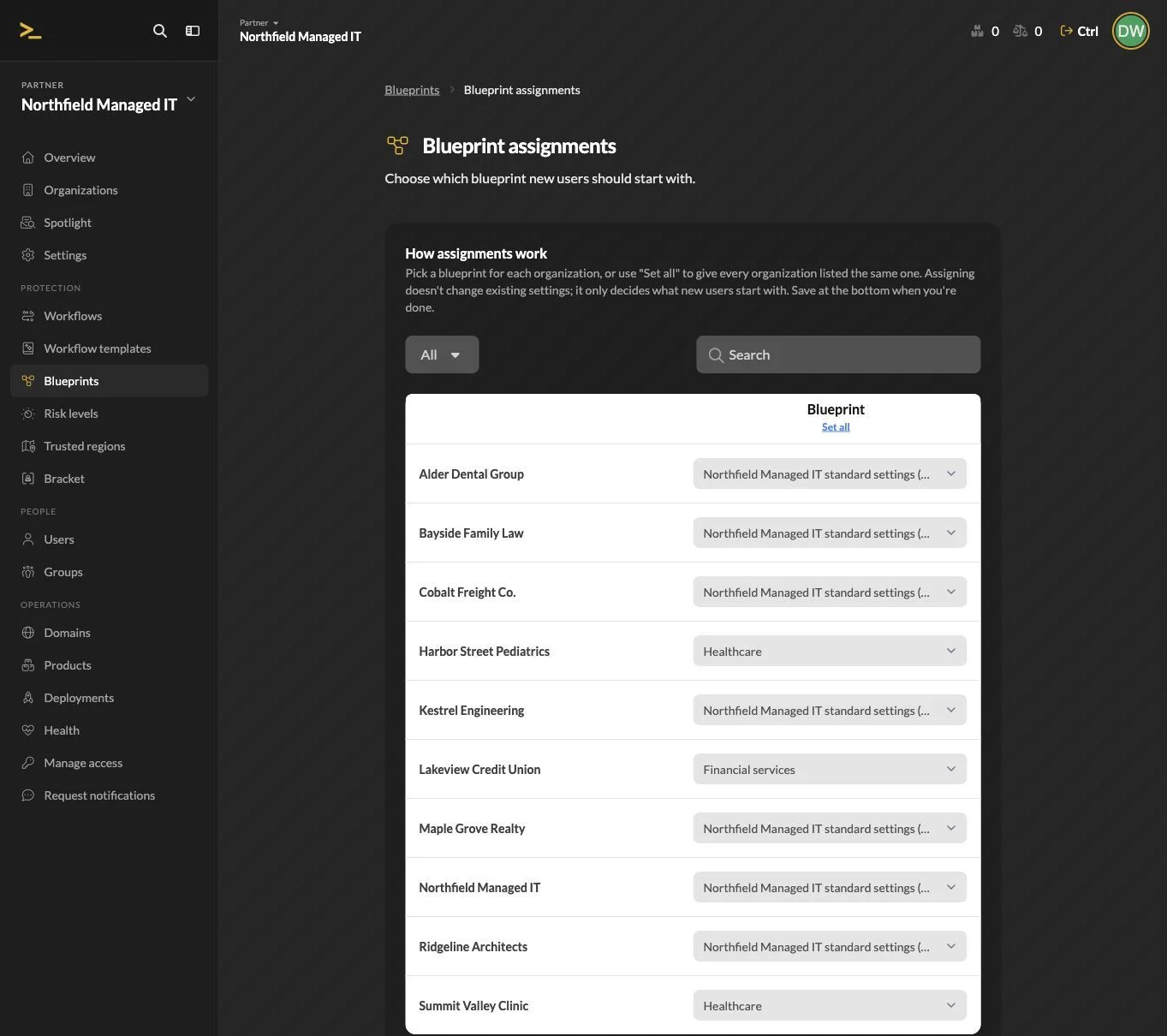
A new customer organization is assigned the MSP’s default blueprint, and that blueprint is applied when the organization is created. New users start with its user and Security Briefing preferences.
Assigning a different blueprint to an existing organization changes the defaults for future users. It leaves current settings and users alone. Editing the assigned blueprint’s user preferences also changes what new users start with, without resetting existing users.
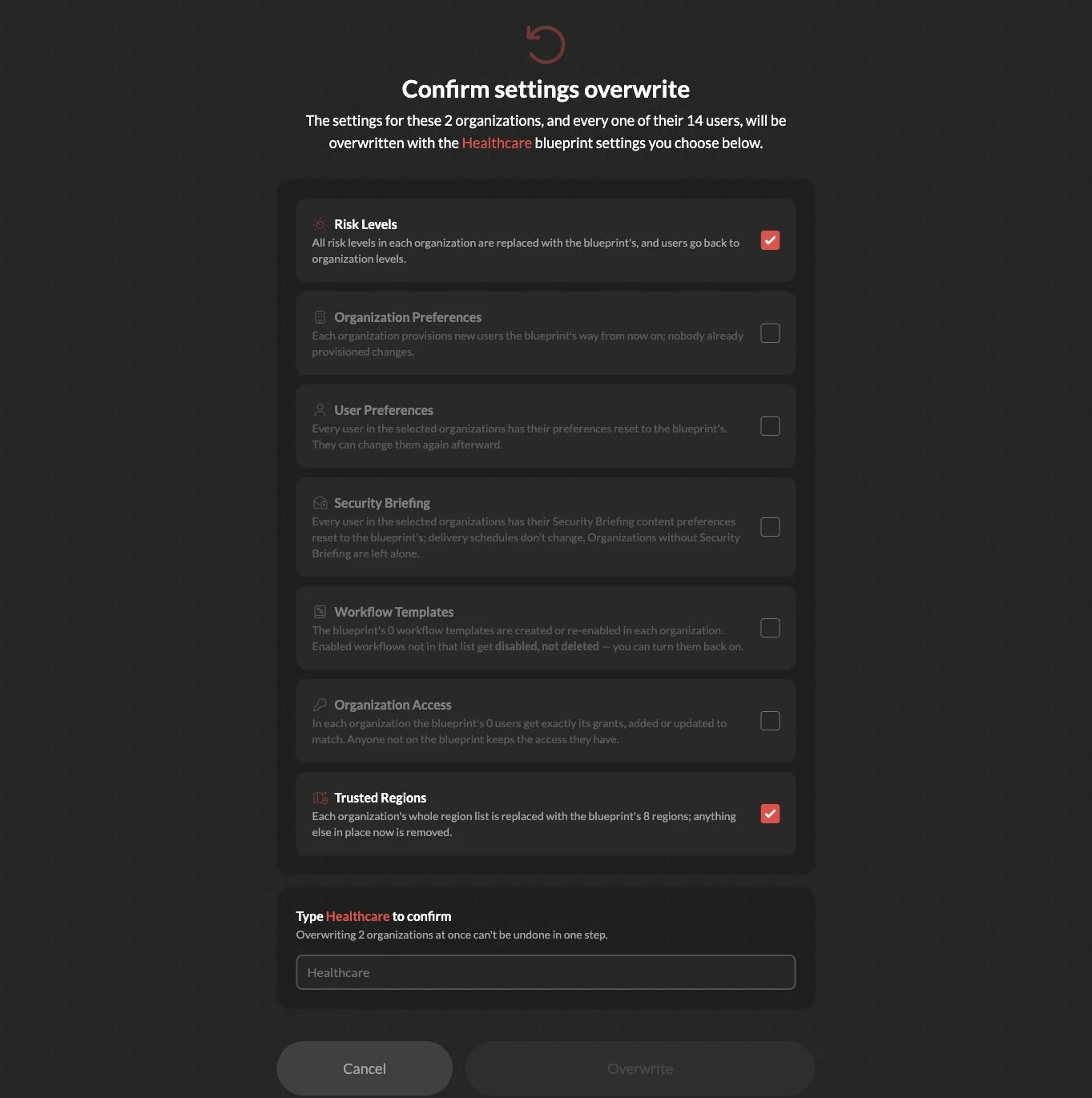
Overwrite changes settings already in place. An administrator chooses the organizations and categories to update. Selecting Risk Levels and leaving User Preferences unchecked returns users to the organization’s risk levels while preserving their other preferences.
Each blueprint holds a complete configuration; administrators select whole categories when overwriting settings. For risk levels, that means using the blueprint’s values even if a user previously chose stricter ones.
Organizations remain editable afterward. Blueprints does not continuously enforce settings or report differences from the blueprint. This release works at the organization level; it does not assign separate blueprints to departments or user groups.
Different settings need different rules#
Applying Workflow Templates creates or re-enables workflows listed in the blueprint and disables those outside it. Disabled workflows can be restored, so an overwrite does not delete a workflow someone built by hand.
Organization Access adds or updates the listed permissions. Anyone not listed keeps their existing access.
Security Briefing overwrites update content preferences and preserve existing delivery schedules, including those synchronized with a user’s working hours. Schedule defaults apply only to new schedules.
Trusted Regions replaces the entire region list, removing any region not listed in the blueprint.
Changes to Organization Preferences affect how new users are provisioned for Shield and Bracket. Users already provisioned keep their product status.
Bulk changes need clear consequences#
The confirmation screen identifies the affected organizations and users and explains what each category will change. Overwrite appears in red. To overwrite multiple organizations, the administrator must also type the blueprint’s name.
If a selected organization uses a different blueprint, the administrator can also assign the new one for future users or keep the existing assignment.
Overwrites run in the background, with a separate status for each organization and a record of what was applied. A failure for one customer does not prevent another’s change from completing.
A failed overwrite is recorded without an automatic retry. Retrying days later could undo changes an administrator made in the meantime.
The selected settings are saved when the overwrite is requested. Later edits to the blueprint do not change what a pending overwrite will apply.
There is no single action to undo a bulk overwrite, so administrators need to check their selections before confirming.
New features need useful defaults#
As Shield adds features with blueprint settings, administrators can choose defaults and try them with a selected customer before applying them more broadly. New users then start with those preferences. The MSP can introduce a change on its own schedule without revisiting every customer’s settings page.